Lab 8 - Spooky, Scary, Silly Snaps
Table of Contents
Overview
Learning outcomes
- Enumerate public S3 bucket resources
- Navigate the AWS Management Console
- Recall how to escalate privileges in AWS
What's involved
- Find the stored snaps that FredAI has replaced with horrifying threats
- Stop the FredAI server
- Sneakily adjust some permissions to access FredAI's final secret
Get Credentials from Public AWS S3 Buckets
- Created a
spooky-scary-silly-snaps.pyPython script to check the list of S3 buckets to get any available objects. - The
haunted-hollow-spooky-<id>S3 bucket had several objects available named 0, 1, 2, ... 102. - Copied over all the objects using the AWS CLI.
- After examining their content, all the objects were text files and included the following clues.
Log In Using AWS Portal
- The local instance of Chrome had a landing page with the AWS IAM login page.
- Let's use the credentials found above:
- Account ID:
618376206520 - IAM user name:
haunted-hollow-admin - Password:
5pooky5cary5keletons!
- Account ID:
Stop AWS EC2 Instance
- Inside AWS, there was an EC2 instance called
FredAI-serverrunning. - Need to go to:
- Actions > Manage instance state > Instance state settings.
- Select "Stop" or "Terminate.
- Click on "Change state".
Elevate Permissions
- After stopping the EC2 instance, you will notice that there are a lot of access limitations and not a lot of options are available to that user.
- Need to go to:
- IAM > Users.
- Select the
haunted-hollow-adminuser. - Edit the policies and "escalate the privileges" by activating all the policies in all the resources like an Administrator would have.
- Click "Next" and "Save Changes" to take effect.
- This will grant access to everything that account is able see, which would include the secret message.
Solution
- Go to Secrets Manager > Secrets.
-
There was a secret called
FredAIsLAstWords-c97a00e1.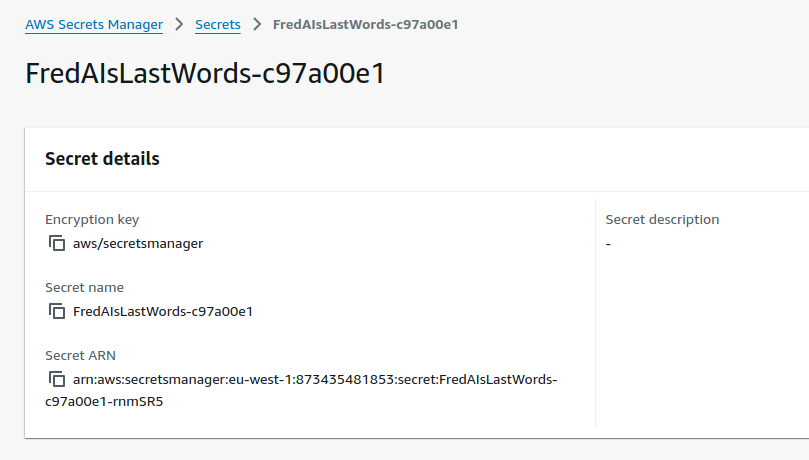
- Go to the "Secret Value" section and click "Get Secret Value" on the right.
-
The decrypted value in Plaintext was
IWillBeBackWaitAndS333.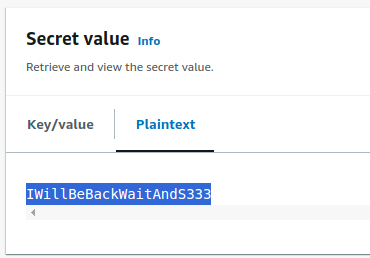
Navigation
| ← Fearsome Forensics |